
If you have ever played around with ChatGPT or Claude, you probably know this frustration:
You ask the AI to build you something cool—maybe a study timer, a personal portfolio, or a cute birthday invite page. The AI happily spits out hundreds of lines of colored HTML, CSS, and JavaScript code.
And then… you get stuck.
Where do you actually put that code? How do you turn a block of text on a chat screen into a real link you can text to your friends or post online?
Normally, that’s where the headache begins. You have to learn about web hosting, sign up for developer tools like GitHub, configure servers, and fiddle with settings that make zero sense if you just wanted a simple one-page site.
There’s a much easier way to skip all of that using the HTMLSave MCP Server.
Here is what it is, how it works, and how you can launch your own live webpage in under five minutes.
The Problem with AI and Web Design
AI models are brilliant designers and programmers, but by default, they have no “hands.” They can write the code, but they can’t leave their chat window to actually publish it on the web for you.
That’s where MCP (Model Context Protocol) comes in.
Don’t let the name confuse you. Think of MCP as giving the AI hands and a toolbox. When you connect an AI to an MCP server, you give it permission to step outside the chat and perform an action for you—like uploading a file directly to a web host.
HTMLSave is a lightweight website host designed specifically for simple, static web pages. When you plug HTMLSave into ChatGPT or Claude through MCP, the entire web design process turns into an everyday conversation.
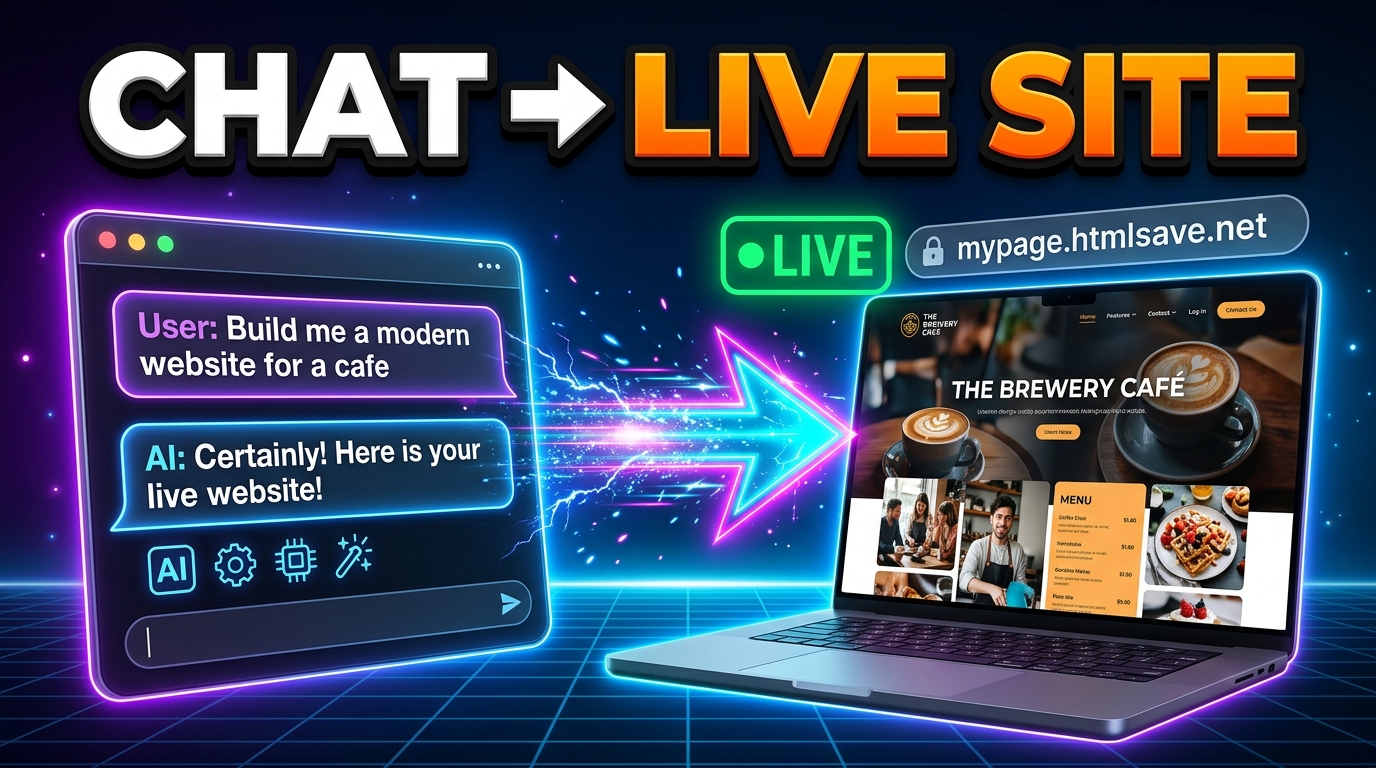
You ask for a page. The AI writes it, publishes it online, and hands you a live link like https://mypage.htmlsave.net. Done.
Setting It Up (Takes About 2 Minutes)
You only need to do this setup once. After that, your AI assistant will know how to publish sites whenever you ask.
1. Grab your details from HTMLSave
- Head over to htmlsave.com and log into your account.
- Go to your user profile settings and scroll down to Advanced Settings.
- Click the blue + Generate API Token button.
- Right below it, your MCP Server URL will appear: (
https://mcp.htmlsave.com). Hit copy.
2. If you use Claude:
- Open Claude, click your profile icon in the bottom left, and open Settings.
- Go to Connectors.
- Click + Add to add a custom connector.
- Give it a name like
htmlsave, paste in the URL (https://mcp.htmlsave.com), and hit Continue. - Complete the quick one-click authorization, and you’re connected.
3. If you use ChatGPT:
- Open Settings > Plugins / Developer Tools.
- Add a custom MCP server, name it
htmlsave, pastehttps://mcp.htmlsave.com, and approve the connection.
No terminal commands, no installs, no developer setup.
How It Works: Two Real Examples
Once connected, you don’t talk to the AI like a programmer. You just talk to it normally.
Example 1: Building a quick interactive widget
Say you want a clean digital counter widget to keep track of your daily study sessions or habit goals.
You open a new chat and type:
“@htmlsave, can you build me a clean counter widget with plus, minus, and reset buttons?”
You hit enter. For a few seconds, the AI calls HTMLSave in the background. Then it replies:
“I’ve built your counter widget and published it live! You can check it out here: https://study-counter.htmlsave.net”
You click the link on your phone or laptop, and the site is actually there. The buttons work, the counter changes numbers, and anyone with the link can use it.
Example 2: Making changes on the fly
What if you visit your new page and think: “Hmm, this dark background is kind of harsh. I want it to look cleaner”?
Normally, you’d have to dig through CSS files, find color codes, and re-upload files.
With HTMLSave MCP, you just reply in the exact same chat:
“Can you change the styling to a minimal white theme with dark text and a subtle outline on the buttons?”
A few seconds later, the AI updates the page directly on HTMLSave. You refresh your browser tab, and the new design is live immediately.
Fun Things You Can Build Right Now
If you’re wondering what you could use this for, here are a few ideas that take less than two minutes to make:
- A Link-in-Bio Page: Tell the AI your name, your social handles, and your favorite colors to create a custom personal hub instead of using Linktree.
- School & Class Projects: Ask the AI to build a clean one-page presentation guide with interactive sections. It looks much cooler than a standard slideshow.
- A Study Timer: Ask for a 25-minute Pomodoro timer with start/pause buttons and a sound chime when the time is up.
- A Mini Trivia Quiz: Ask the AI to build a five-question quiz about your favorite show or book with instant score feedback.
- An Event Invitation: Build a simple invite page for a meet-up or party with date details, a countdown clock, and a link to Google Maps.
Wrapping Up
Building on the web used to feel divided: people who knew how to write code and manage servers, and everyone else who had to rely on rigid templates.
Connecting AI to lightweight hosting like HTMLSave bridges that gap completely. It turns the web back into what it was always meant to be: a place where anyone with an idea can bring it to life, share a link, and show their work to the world.