
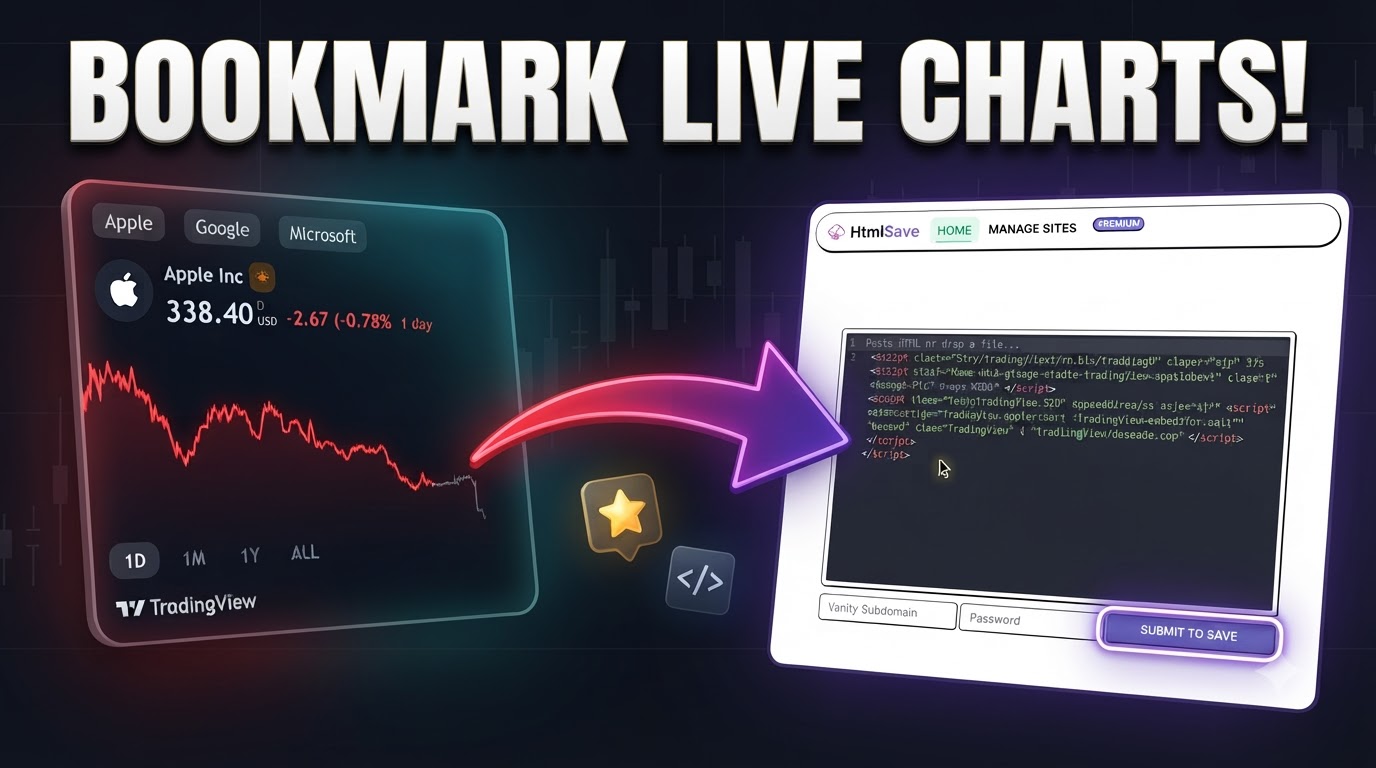
Whether you are actively tracking stocks, crypto, or forex, opening multiple heavy financial platforms just to check a few charts can be frustrating.
In this quick tutorial, you’ll learn how to take free, interactive financial widgets from TradingView and host them instantly using HtmlSave.com — creating a clean, lightweight personal dashboard that you can bookmark and check anytime on mobile or desktop!
Why Build a Custom Hosted Chart?
- Zero Coding Needed: TradingView provides plug-and-play embed codes.
- Instant Free Hosting: No servers, domains, or Git repositories required—HtmlSave hosts raw HTML for free in seconds.
- Accessible Anywhere: Once published, simply bookmark your unique URL to check your favorite tickers with a single tap.
Step 1: Customize Your TradingView Widget
- Head over to the TradingView Widgets Directory.
- Select the widget style of your choice (for example, the Symbol Overview widget).
- Click on Get widget to open the configurator.
- Customize your settings:
- Symbols: Add the assets you want to monitor (e.g., Apple, Google, Microsoft, NVIDIA, Bitcoin, etc.).
- Dimensions: Toggle on “Use container size” so the chart automatically adapts to 100% of your screen width and height.
- Appearance: Adjust colors, default timeframes (1D, 1M, 1Y), and themes to match your preference.
- Click Apply to review the live preview.
- Once satisfied, click Copy code under the Embed code box.
Step 2: Host It for Free on HtmlSave.com
- Open HtmlSave.com in a new tab.
- In the main text box, paste the embed snippet you copied from TradingView.
- In the Vanity Subdomain field, type a memorable name for your dashboard (for example:
tradingchartsormywatchlist). - (Optional) Add a password if you want to protect your page from unauthorized edits.
- Click Submit to Save.
Step 3: Bookmark & Enjoy Your Personal Dashboard
- Click on Live Link Preview to open your live web page (e.g.,
https://tradingcharts.htmlsave.net). - Test out the tabs to switch between your chosen symbols and timeframes.
- Press
Ctrl + D(orCmd + Don Mac) to bookmark your URL, or add it to your smartphone’s home screen.
Now, whenever market hours begin, your custom tracking dashboard is just one click away!