
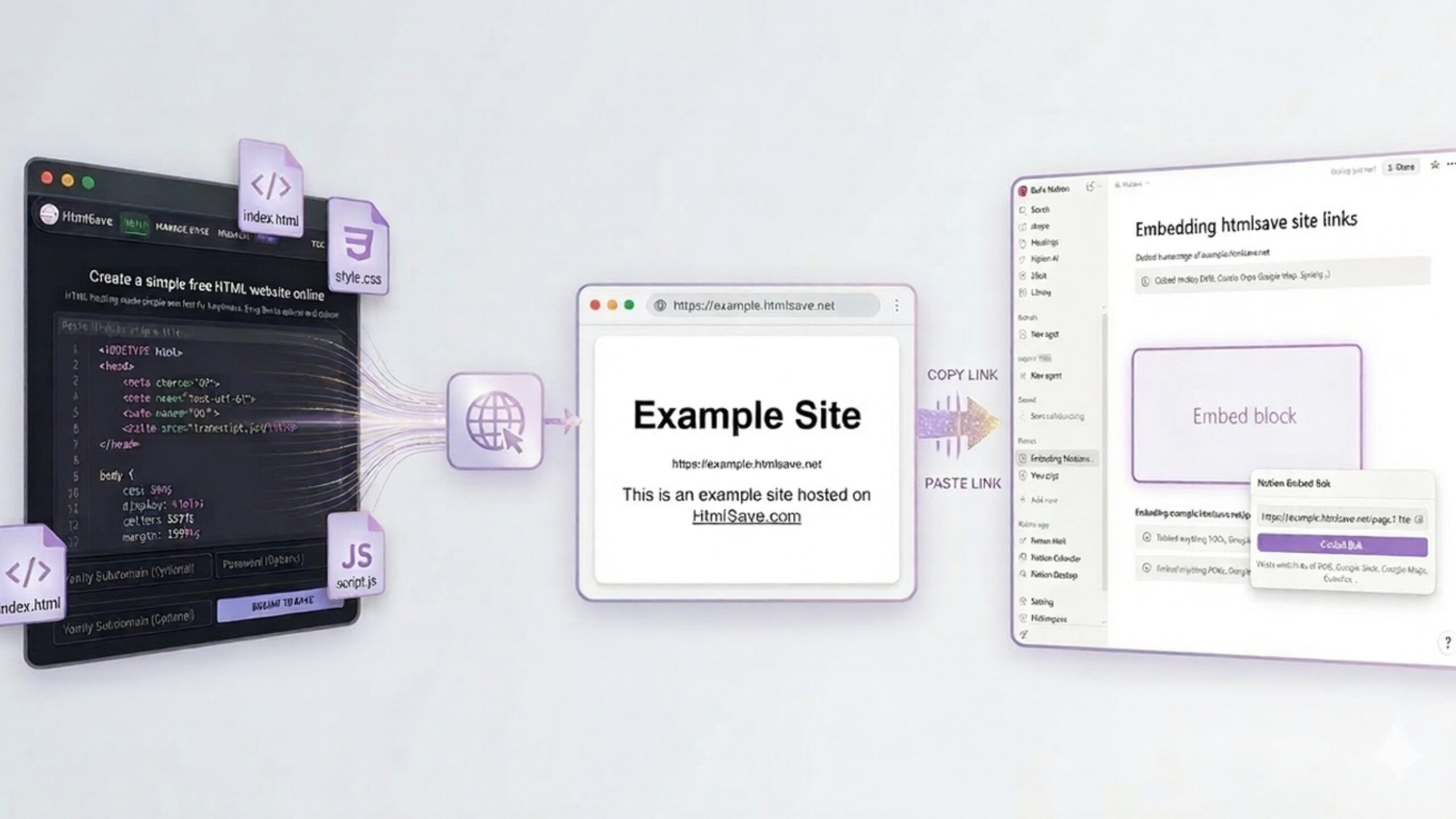
If you use Notion, you already know it is one of the most powerful workspace and website-building tools in the world. From organizing your daily tasks to hosting full public websites, its flexibility is incredible.
But as your Notion setup becomes more advanced, you will inevitably hit a common roadblock: Notion does not natively allow you to embed raw HTML, CSS, or JavaScript directly onto a page.
If you want to add a live stock chart from TradingView, a dynamic pricing table, or a custom “Quote of the Day” widget that you coded yourself, pasting the raw <iframe> or <div> tags simply won’t work. Notion requires a live, secure URL to create an embed block.
That’s where HtmlSave comes in.
In this guide, we’ll show you exactly how to use HtmlSave to instantly host your custom code and seamlessly embed it into any Notion page.
What is HtmlSave?
HtmlSave is a lightning-fast, free platform that lets you paste your raw HTML, CSS, and JS code and instantly generates a live, hosted web page.
With our newly redesigned platform, HtmlSave acts as a mini-development environment right in your browser. You can manage multiple files (like index.html, style.css, script.js, and .json data files) within a single project. This makes it the ultimate companion tool for Notion users looking to build or host complex, interactive widgets.
Step-by-Step Guide: How to Embed HTML in Notion
Whether you are copying a pre-made embed code from a third-party website or writing a custom widget completely from scratch, here is how to get it live in your Notion workspace in under two minutes.
Step 1: Prepare Your Code
First, you need the code for your widget.
- Using a Pre-made Widget: Platforms like TradingView (for finance charts) or Servicebot (for pricing tables) offer customizable widgets. Once you configure your widget on their site, simply copy the generated HTML embed code.
- Coding Your Own: If you know a bit of code, you can write your own custom widget using standard HTML, CSS, and JavaScript.
Step 2: Create Your Free HtmlSave Site
- Navigate to the HtmlSave homepage.
- You will see our simple, dark-mode code editor. Paste your HTML code directly into the editor. (Alternatively, you can drag and drop an existing HTML file right into the box).
- Optional: At the bottom of the screen, you can assign a Vanity Subdomain (e.g., my-notion-widget) and add a password if you want to keep the widget private.
- Click the Submit to Save button.
Step 3: Add CSS, JS, or JSON Files (For Custom Widgets)
If you are building a custom widget from scratch that requires external stylesheets or scripts, our new dashboard makes it incredibly easy to manage:
- After submitting your initial code, go to your Site Dashboard and click on the Pages tab.
- You will see your primary index.html file listed.
- To add styling, type style into the “New Page Name” field, select .css from the dropdown menu, and click Add New Page to Site. You can now paste your custom CSS.
- Repeat this process to create a script.js or even a .json file for data fetching.
- Inside the editor, you can seamlessly click through the file tabs at the top to edit your HTML, CSS, and JavaScript all in one unified view. Click Save Changes when you’re done.
Step 4: Copy Your Live URL
Now that your code is saved and hosted, it’s time to bring it to Notion:
- Inside the HtmlSave editor, click the green Live Link Preview button in the top right corner.
- Your new widget will open in a new browser tab. Verify that everything looks and functions exactly how you want it.
- Copy the URL from your browser’s address bar. This is the live link Notion needs.
Step 5: Embed the Widget in Notion
- Open the Notion page where you want your widget to live.
- Type /embed and press Enter to create an Embed block.
- Paste the HtmlSave URL you just copied and click Embed Link.
- Your custom HTML widget will instantly render on the page! You can use the grey drag handles on the sides and corners of the block to resize the widget so it fits your workspace perfectly.
3 Creative Ways to Use HtmlSave with Notion
Looking for inspiration? Here are a few ways Notion power users are upgrading their workspaces using HtmlSave:
1. Live Financial & Crypto Dashboards
Keep track of your investments without leaving your workspace. Generate an HTML widget from TradingView (like a Market Overview or a specific stock ticker), host it on HtmlSave, and embed it right into your personal Notion dashboard.
2. Interactive Website Elements (Pricing Pages)
If you use Notion to host your startup’s website or portfolio (via tools like Super.so), you can embed functional, beautifully CSS-styled pricing tiers, checkout portals, or contact forms directly onto your page.
3. Custom Utility Widgets
Using HtmlSave’s multi-file support, you can code your own interactive widgets. Write a simple JavaScript application that pulls daily motivation quotes from a .json file, build a custom Pomodoro timer, or design a specialized calculator tailored to your daily workflow.
Ready to Supercharge Your Notion Workspace?
Notion is the ultimate blank canvas, and combining it with HtmlSave removes all limits on what you can build. By seamlessly turning raw code into live URLs, HtmlSave bridges the gap between custom web development and Notion’s no-code ecosystem.